ImaCash is the software that connects the establishment's sales system with the cash control machine. Its goal is to make cash desk operations safer, faster and easier to review: payments, change, shifts, refunds, manual transactions, emptying, refilling, reports and incidents are recorded so the business has control over every movement. This manual brings together the main guides for using ImaCash correctly, both in daily operations and in administration and configuration tasks.
This manual is designed for everyone who works with ImaCash:
Cash desk staff who need to take payments, manage change, review pending operations or record a manual transaction.
Supervisors and shift managers who need to open or close shifts, review incidents, control movements and resolve operational questions.
Establishment administrators who manage users, permissions, reports, configuration and maintenance.
Technicians and integrators who need to understand how ImaCash behaves depending on the POS, the cash machine and the active modules.
No technical knowledge is required to use the basic guides. Each section is organized around real tasks: what you want to do, where to go and what to review before confirming an operation.
Minimum requirements necessary to install ImaCash
To ensure stable operation, it is advisable to first validate the equipment and the environment on which the solution is going to be deployed.
Computer with Windows 8.1 or higher.
Recommended resolution of 1366x768 or 1024x768.
At least 2 GB of RAM.
NetFramework 4.0 or higher installed.
POS free of viruses, malware and adware.
Exceptions configured in antivirus and firewall to ensure optimal performance.
Before you start
ImaCash may work differently depending on the installation. Some options may appear, change name or be unavailable depending on:
The installed cash machine.
The integrated POS/TPV.
The user's permissions.
The license and maintenance status.
Active modules, such as card, reports, Cloud, SmartTill or others.
The configuration defined by the establishment.
If an option does not appear on your screen, it does not necessarily mean there is an error. It may be disabled, depend on permissions or not be compatible with the installed machine.
Guía rápida por botones de ImaCash
La barra principal reúne los accesos más usados de ImaCash. Los botones visibles pueden variar según los permisos del usuario, la máquina instalada, el POS/TPV integrado, la licencia y los módulos activos.
Ajustes
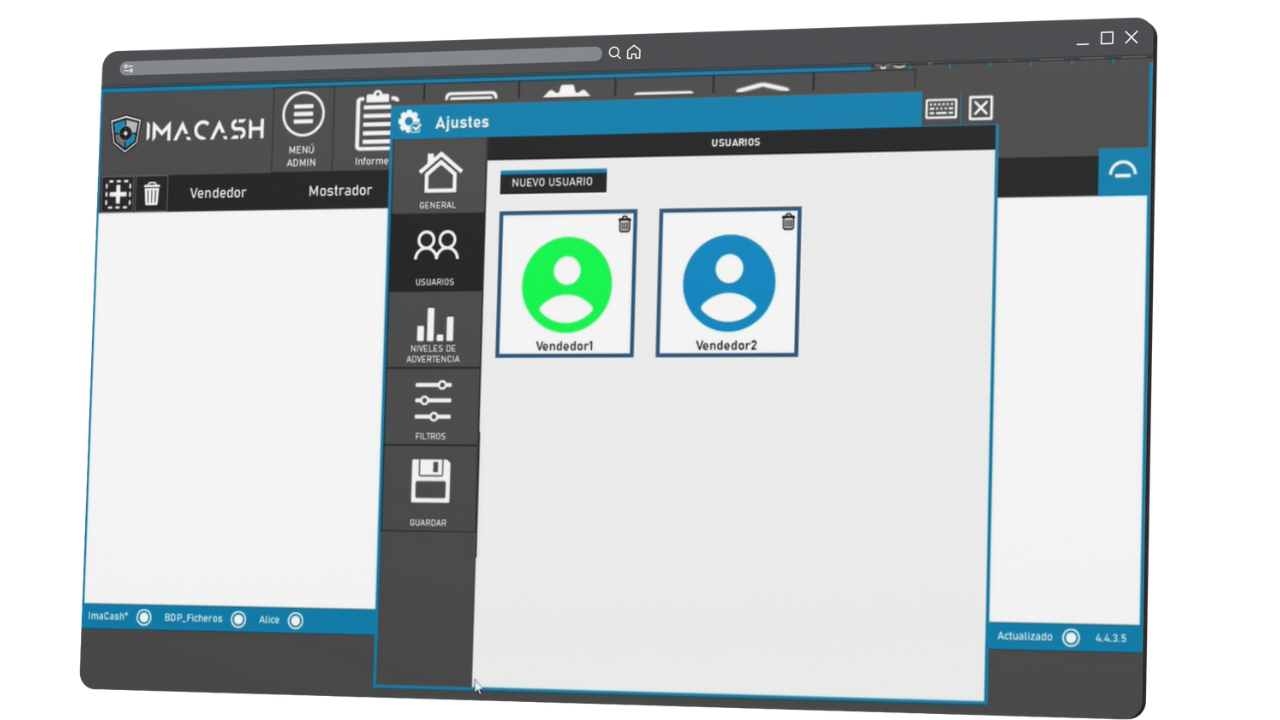
Permite modificar opciones generales de funcionamiento, interfaz, cobros, ventas, accesos visibles, seguridad, permisos, usuarios, filtros, tarjeta y opciones avanzadas. El acceso puede requerir usuario y contraseña.
Permite abrir, continuar, cerrar o vaciar turnos de trabajo. También ayuda a revisar foto inicial, máquina ahora, efectivo a recaudar, últimos turnos y estado del turno.
Agrupa funciones administrativas o de gestión que pueden variar según la instalación. Puede incluir accesos relacionados con informes, control operativo o procesos internos del establecimiento.
Permite registrar una operación directamente desde ImaCash cuando no llega automáticamente desde el POS/TPV o cuando se necesita crear una transacción puntual autorizada.
Permite acceder a funciones relacionadas con la máquina de efectivo, como movimientos, inventario, vaciados, rellenados, dispensados, discrepancias, atascos o mantenimiento, según el dispositivo instalado.
Permite realizar cambios de efectivo por importe, por denominación u otras opciones disponibles, según la máquina, el inventario y los permisos del usuario.
Permite consultar o recuperar operaciones aplazadas o pendientes. También se relaciona con procesos de revisión y resincronización cuando una transacción no se completó correctamente.
Permite acceder a ajustes técnicos o avanzados de ImaCash, como integración con POS/TPV, máquina, base de datos, tarjeta, módulos activos, licencia o comunicaciones.
Permite refrescar o actualizar información del sistema, según la configuración instalada. Puede ayudar cuando necesitas comprobar el estado de operaciones, conexión o datos visibles.
Algunas funciones específicas pueden estar dentro de cada sección y no como botones independientes. Por ejemplo, inventario, discrepancias, stacker, informes, filtros, tarjeta o SMTP pueden aparecer dentro de Ajustes, Administración del dispositivo, BackOffice o Configuración.
Table of contents
Access each manual guide according to the task you need to perform in ImaCash.
Introducción a ImaCash
Empieza aquí si es la primera vez que usas ImaCash o si necesitas entender para qué sirve. Esta guía explica qué hace ImaCash, qué problema resuelve y cómo se relaciona con el POS/TPV y la máquina de efectivo.
Aprende a reconocer la pantalla inicial de ImaCash: operaciones visibles, usuario activo, estado del dispositivo, botones principales, icono flotante y accesos de trabajo.
Learn the main Settings options: payments and sales, interface and screen, security and permissions, users, warning levels, filters, card, advanced options, and saving changes. Access may require a username and password.
Guía para abrir, continuar, cerrar y vaciar turnos. También explica conceptos como foto inicial, máquina ahora, efectivo a recaudar, últimos turnos y permisos para abrir o cerrar turno.
Consulta cómo funciona el flujo de cobro, pagos en efectivo, pagos con tarjeta, pagos mixtos, devoluciones, operaciones canceladas y transacciones pendientes.
Explica cuándo usar una transacción manual, cómo seleccionar usuario, introducir importe, añadir concepto y registrar una operación cuando no llega automáticamente desde el POS/TPV.
Guía para entender qué es una transacción aplazada, cómo recuperarla, cuándo resincronizar y qué precauciones tomar antes de limpiar o actualizar operaciones en pantalla.
Explica cómo realizar cambios de efectivo y qué significan las opciones disponibles, como cambio por importe, por denominación, cambio lógico, cambio hacia arriba o cambio hacia abajo.
Aprende a registrar salidas y entradas de efectivo en la máquina: vaciados, rellenados, dispensados, movimientos por denominación, stacker e inventario.
Explica cómo funcionan los usuarios, perfiles, contraseñas, login con NFC y permisos para operaciones sensibles como informes, configuración, abonos, vaciados o transacciones manuales.
Guía orientada a administradores y técnicos. Reúne ajustes de ImaCash, niveles de advertencia, filtros, tarjeta, opciones avanzadas, base de datos, integración POS, máquina y módulos activos.
Consulta las opciones de informes: ventas, vaciados, dispensados, rellenados, cambios, turnos, discrepancias y exportación a CSV, Excel o PDF. También incluye el acceso al portal web de informes.
Explica cómo configurar el correo para comunicaciones automáticas, informes o avisos, incluyendo datos SMTP, contraseña de aplicación, Gmail, Outlook/Microsoft 365 y prueba de envío.
Consulta soluciones para problemas habituales: máquina no disponible, puerto COM incorrecto, inventario insuficiente, falta de combinación de cambio, error de integración, SMTP incorrecto, sesión no válida o mantenimiento inactivo.