ImaCash user manual

Shifts in ImaCash

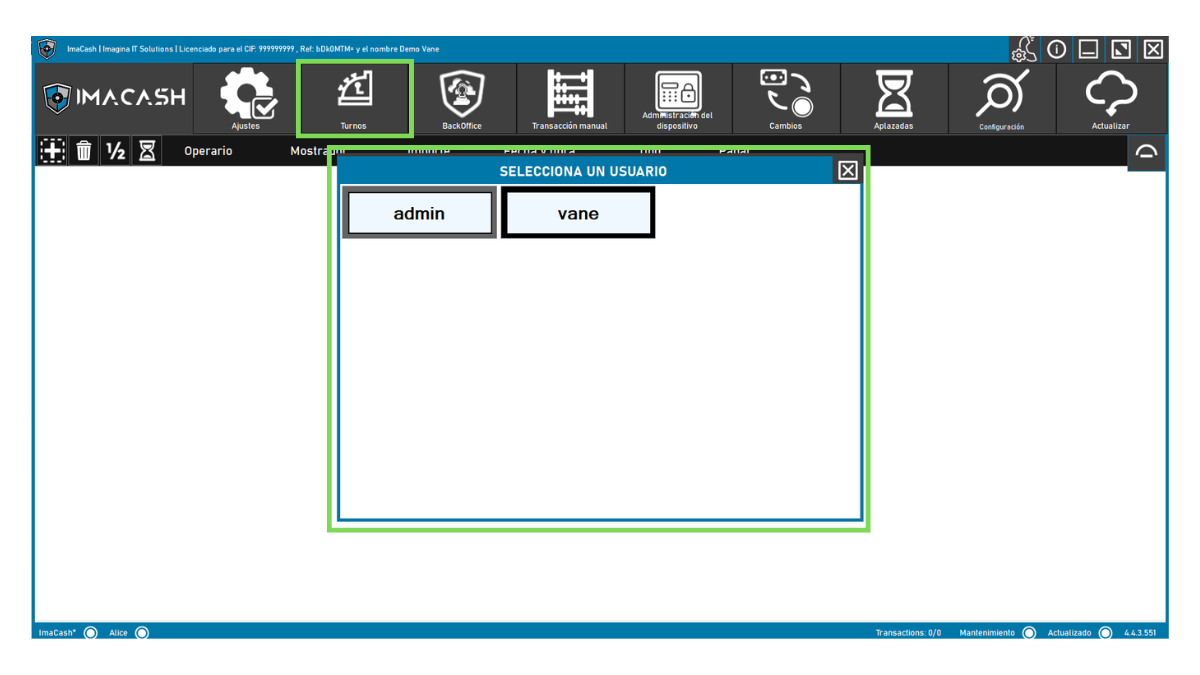
Shifts help organize cashier activity by user and by work period. From this section you can select a user, start a shift, close a shift or empty the cash collected for that shift, as long as you have permissions to do so.

Overview

Control each work period

A shift is a work record associated with a user. Within the shift, collections, cash movements, changes, incidents, discrepancies and other events related to the operations of ImaCash may be reflected.

The objective is to know what happened during a specific period and facilitate the closing, the review of amounts and the monitoring of operations.

General Shift screen in ImaCash
Before you start

Select the correct user

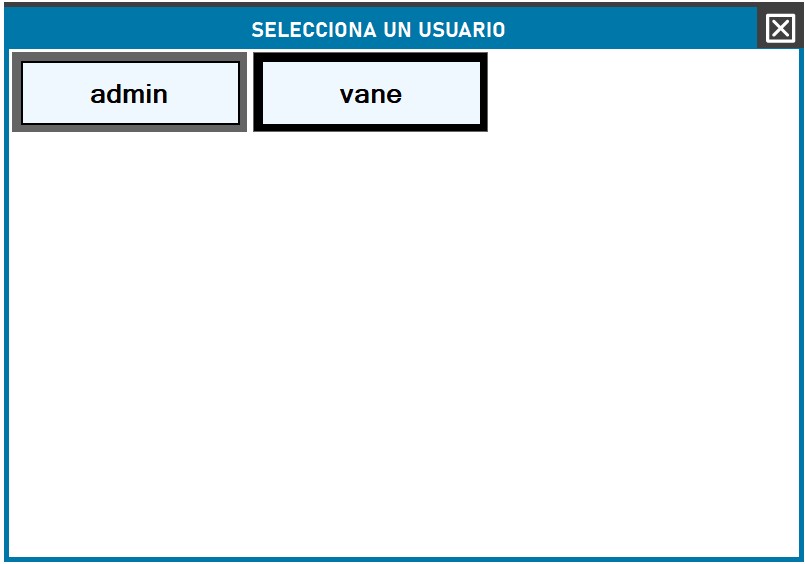
When entering Shifts, ImaCash may ask you to select the user who will manage the shift.

Always choose the correct user before continuing. The actions carried out will be associated with that user.

Window to select user in Shifts of ImaCash

When is a shift used?

Shifts are usually used to separate activity by shift, cash register, employee or operating period.

  • At the start of the work day.
  • When changing employees or cashier managers.
  • When changing cashier or point of sale.
  • At the end of the day.
  • When the establishment needs to separate the activity by periods.

The exact way of working with shifts may vary depending on the establishment's configuration.

What you can see on the shift screen

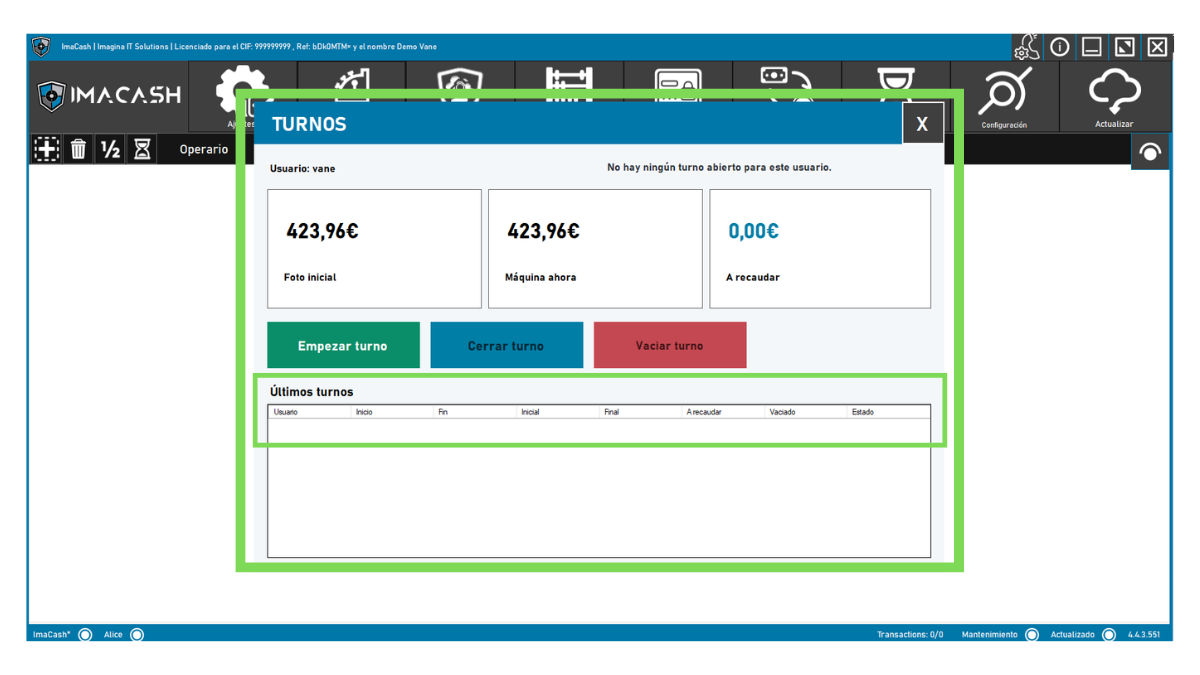
On the Shifts screen you will find the main data of the selected user and the status of their shift.

ImaCash Shift Screen with no open shift

User

Shows the user for whom the shift is being managed.

Status message

Indicates if there is no open shift, if there is an active shift or if the shift has already been closed or emptied.

Initial photo

Shows the cash registered in the machine at the start of the shift. This value serves as a starting point to compare what was in the machine at the beginning of the period.

machine now

Shows the cash that the machine has registered at the time of the query. This information may change during the day as payments, changes, emptying or filling are made.

To collect

Indicates the amount that must be withdrawn or reviewed at the end of the shift. If €0.00 appears, it may mean that there is no cash pending to be emptied for that shift.

Available actions

On the Shifts screen you will find three main actions: Start shift, Close shift, and Empty shift. The availability of each button may depend on the shift status and user permissions.

Last turns

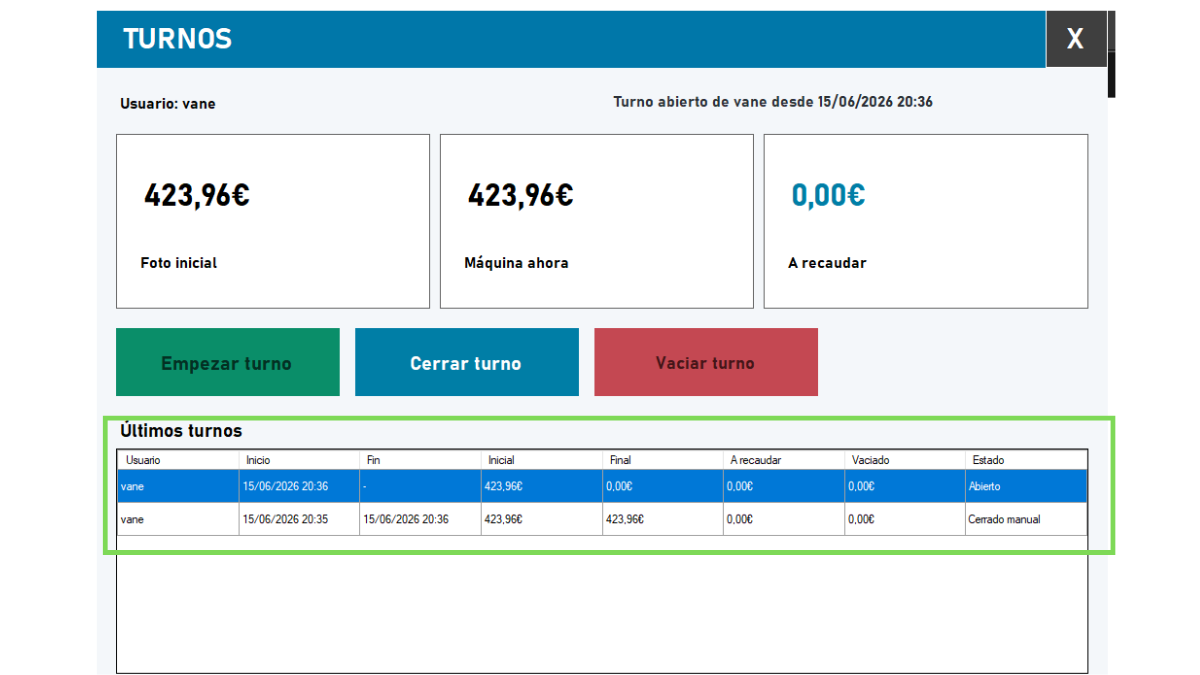
The Last Shifts table shows recent shift history. It can include user, start, end, initial, final, to collect, empty and status.

Shifts screen with last shifts visible in ImaCash
Record

Usual states

In the history you can find statuses like:

  • Open: The shift is active.
  • Manual Close: The shift was closed by a user.
  • Empty: the cash for the shift has already been withdrawn, if applicable.

The exact state name may vary by installation.

Actions

Available actions

On the Shifts screen you will find three main actions: Start shift, Close shift, and Empty shift.

The availability of each button may depend on the shift status and user permissions.

Permissions

Necessary permissions

Not all users can start, close or empty shifts.

These actions may be limited by the profile assigned in ImaCash. If you don't see an option or can't complete it, it may be because your user doesn't have enough permissions.

In that case, contact a person in charge or system administrator.

Facility

What can vary

The Shifts section may look or behave differently depending on:

  • The installed cash machine.
  • The integrated POS/TPV.
  • The user's permissions.
  • The license and maintenance status.
  • The active modules.
  • The configuration defined by the establishment.

If an option does not appear on your screen, it does not necessarily mean there is an error. It may be disabled, permission-dependent, or not supported by the installation.

Incidents

Errors or frequent cases

Before repeating an action, check the status of the shift, the selected user and the availability of the machine.

  • The user you need to select does not appear.
  • The button to close shift does not appear.
  • The user does not have permission to start, close or empty shifts.
  • The shift has already been closed.
  • The shift has already been emptied.
  • The machine is not available.
  • There are pending operations.
  • There is an open discrepancy.
  • The expected cash does not match the recorded cash.
  • The POS/POS has not sent all the operations.
Before closing or emptying

Quick review

If there is an incident, it is better to review it before closing or emptying to avoid differences in the cash balance.

  • That the selected user is correct.
  • That there are no pending operations.
  • That there are no unresolved discrepancies.
  • That the machine is available.
  • That the amount to be collected makes sense.
  • That the POS/POS has correctly sent the operations.
  • That the person responsible has authorized the emptying, if the internal procedure requires it.

Operational summary

Use this table as a quick reference when deciding which action to take.

Action When to use it
Select user When entering Shifts to choose who will manage the shift.
Start shift At the beginning of a day, box or work period.
Close shift At the end of the user's activity without necessarily withdrawing the cash.
Empty shift When the cash collected for that shift is withdrawn.
Review last shifts To check history, amounts and previous statuses.

Do you need help with ImaCash?

We help you resolve questions about shifts, closures and emptying

If you have questions about shifts, closures, emptying, daily use of the system or integration with your environment, contact the Imagina IT Solutions support team.