ImaCash user manual

Reports and web portal in ImaCash

The Reports and web portal section allows you to consult the activity recorded by ImaCash: sales, cash movements, shifts, changes, fillings, emptying, dispensing and discrepancies.

Consultation and control

Review the operation with filters and exports

The portal is designed for managers, administrators or users with reporting permission. From there you can review the operations, apply filters and export information for cash closing, internal control or subsequent analysis.

Before reporting a problem, check the date range, the filters applied and the user you logged in with.

Place capture here
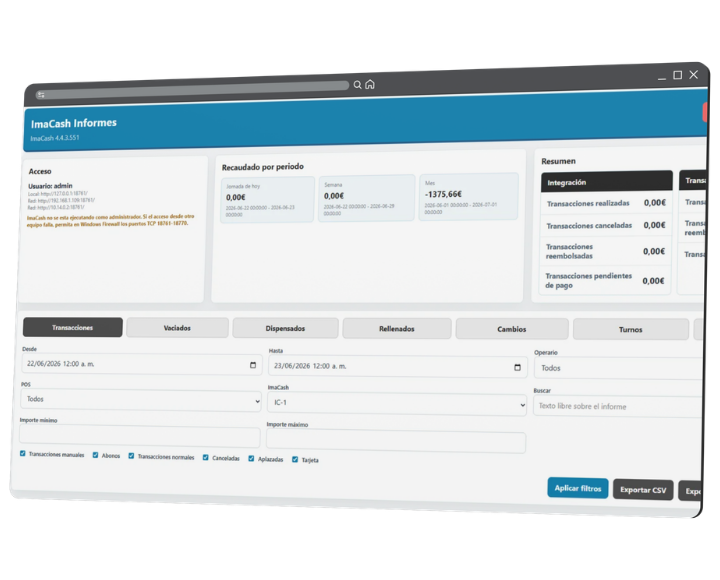
Access screen to the ImaCash reporting portal.
Access

Access to the reporting portal

The reporting portal has protected access. To log in, use a ImaCash user with reporting permissions.

  • User.
  • Password.

If the user does not have sufficient permissions, the portal can prevent access or limit the visible sections.

Summary

General summary

A summary of the activity can appear at the top of the portal.

This summary helps you quickly review data such as collections by period, activity for the day, week or month, and totals related to the selected report.

The summary may change depending on the active tab and the filters applied.

Eyelashes

What you can consult on the portal

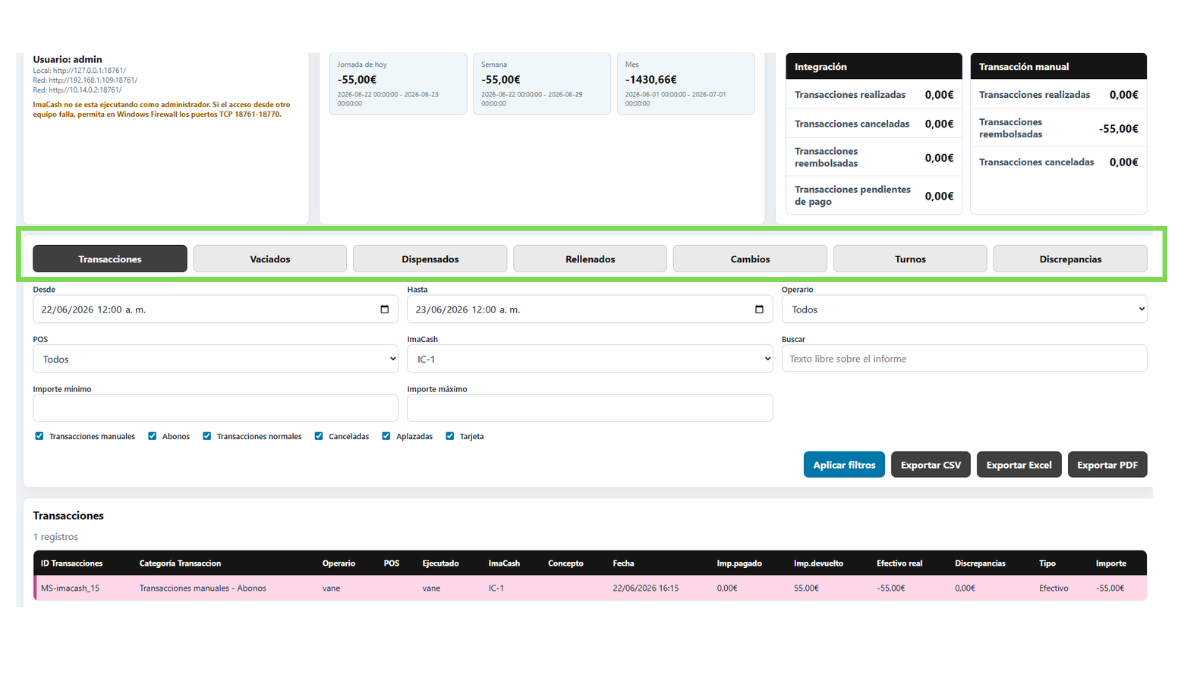
The reporting portal may display different tabs depending on the installation and available permissions.

  • Sales.
  • Emptyed.
  • Dispensed.
  • Filled.
  • Changes.
  • Shifts.
  • ST Reports.
  • Traces ST.
  • Discrepancies.

Not all installations will have all tabs active.

Place capture here
Overview of the portal with reporting tabs visible.
Filters

Available filters

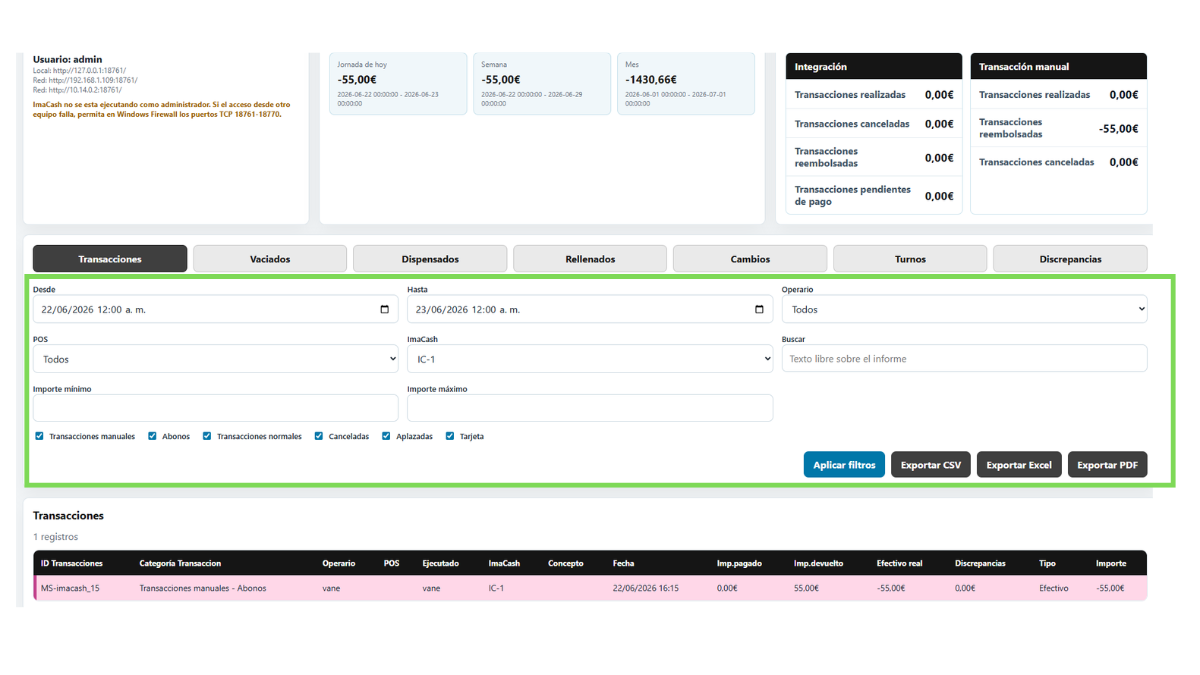
The portal allows you to filter the information to review only the necessary data.

  • From: initial date and time.
  • To: end date and time.
  • Seller: user or operator.
  • POS: point of sale.
  • ImaCash: equipment or device.
  • Search: free text within the report.
  • Minimum amount.
  • Maximum amount.

After modifying the filters, tap Apply Filters to update the information.

Place capture here
Report portal filter block.
Sales

Sales report

The sales report shows the transactions recorded by ImaCash.

  • Sale identifier.
  • Transaction category.
  • Seller.
  • POS.
  • Execution status.
  • ImaCash associated.
  • Concept.
  • Date.
  • Amount paid.
  • Returned amount.
  • Real cash.
  • Discrepancy.
  • Payment type.
  • Total amount.
Sales filters

Include or exclude operations

In sales, specific filters can also appear to include or exclude operations.

  • Manuals.
  • Fertilizers.
  • Normal.
  • Canceled.
  • Postponed.
  • Card.
Place capture here
Sales report with filters and visible table.

Cash movements

These reports help review cash outflows, inflows, and changes that affect machine inventory.

Emptying

Emptying

Allows you to review cash withdrawals from the machine. It can show date, user, amount, cassette amount, machine total and type of movement.

Dispensed

Dispensed

Collect controlled cash outflows. It is used to review movements in which the machine delivered cash outside the normal flow of a sale.

Filled

Filled

Displays cash entries into the machine and helps confirm when cash was replenished and what amount was entered.

Changes

Changes

Allows you to consult exchange operations carried out from ImaCash, useful for reviewing movements that affect available cash.

Filled

Usual data

  • Date.
  • User.
  • Amount.
  • Coins.
  • Tickets.
  • Total in machine.
  • Detail by name.
Shifts

Shift report

The shift report allows you to review the opening, closing and emptying of shifts.

  • User.
  • ImaCash associated.
  • Start of shift.
  • End of shift.
  • Initial photo.
  • Final photo.
  • Expected amount.
  • Empty amount.
  • Shift status.

This report helps check activity by day, employee or cash period.

SmartTill

ST Reports and ST Traces

Some installations may display tabs related to SmartTill or ST modules.

These sections may include reports, traces, transaction details, amounts, discrepancies, resolution status, origin, suspicions or access to videos if the installation allows it.

If you do not work with SmartTill or the module is not active, these tabs may not appear.

Place capture here
Shift Report with status, start, end and amounts.
Incidents

Discrepancies

The discrepancy report allows you to review recorded incidents.

  • Identifier.
  • Date.
  • User.
  • Amount.
  • State.
  • Resolution date.
  • Reason.

This report is important for tracking cash differences, open issues, or resolved discrepancies.

Place capture here
Discrepancies Report with status and resolution date.
Export

Export reports

The portal allows you to export information in various formats:

  • Export CSV.
  • Export Excel.
  • Export PDF.

Before exporting, check that the filters applied are correct. The generated file will be based on the selected report and date range.

The PDF can be generated as a daily report or summary prepared for closing and administration, depending on the available configuration.

Diary

Daily report

ImaCash can generate or send a daily report if your installation has it configured.

The report closing time can define the reporting day, even if the closing occurs after midnight.

In some configurations, the daily report can be sent from ImaCloud. If ImaCash is not open at closing time, shipping can take place at the next opening.

Permissions

Necessary permissions

Access to reports may require specific permissions.

  • User without reporting permission.
  • Invalid or expired session.
  • Module not active.
  • License or maintenance not available.
  • Establishment configuration.
  • Team ImaCash without sufficient connection.

Contact a person in charge if you need to consult reports and do not have access.

Facility

What can vary

The portal may vary depending on:

  • Active modules.
  • Integrated POS/POS.
  • Number of teams ImaCash.
  • Users and permissions.
  • Using SmartTill.
  • Card use.
  • Setting up daily reports.
  • License and maintenance.
  • Synchronized data available.

Therefore, some tabs, columns or filters may not appear in all establishments.

Frequent cases

Common errors or situations

  • Cannot access the portal.
  • Incorrect username or password.
  • The user does not have reporting permissions.
  • The report does not load.
  • No data appears in the selected range.
  • Filters hide expected operations.
  • Cannot export CSV, Excel or PDF.
  • The session expires.
  • The daily report is not sent.
  • The computer has no connection to ImaCloud or the corresponding server.
Before reviewing

Recommendation before reviewing reports

Confirm the period, filters and user first before interpreting the results.

  • That you are using the correct user.
  • That the date range is appropriate.
  • That the POS, seller and ImaCash selected are correct.
  • That sales filters do not exclude necessary operations.
  • That the selected tab corresponds to the type of movement you are looking for.
  • That the data is updated.
  • That you have permission to export the information.

Operational summary

Use this table as a quick reference to get to the correct report.

Action When to use it
Enter the portal To view reports from an authorized user.
Filter by date To review a specific period.
Filter by seller, POS or ImaCash To limit data by user, box or equipment.
Consult sales To review collected, canceled, postponed or card operations.
Check shifts To review openings, closings, amounts and statuses.
Consult movements To review empties, dispenses, refills and changes.
Check discrepancies To review open or resolved incidents.
Export To save or share the report in CSV, Excel or PDF.

Do you need help with ImaCash?

We help you resolve installation, configuration and operational questions

If you want us to review your case, we can guide you on reports, filters, exports, permissions or data synchronization.