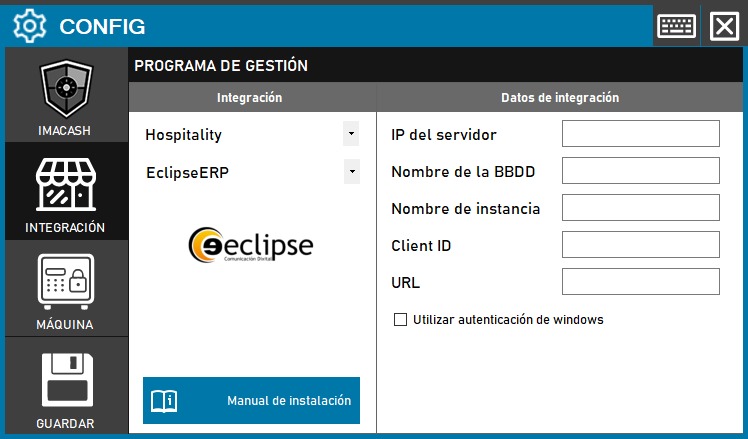
Steps to follow:
1. Open the integration settings:
- Go to CONFIG → INTEGRATION in your ImaCash system
2. Select the POS system:
- Select the POS category, in this case «Hospitality»
- Then select EclipseERP from the drop-down menu
3. Complete the connection details:
- Server IP: Enter the IP address of the server where Eclipse ERP is installed
- Database Name: Name of the Eclipse database
- Instance name: Name of the SQL Server instance (if applicable)
- Client ID: Unique identifier of the Eclipse client
- URL: URL to access the Eclipse ERP system
- Use Windows Authentication: Check this box if you want to use Windows Authentication instead of SQL username and password.
4. Save the configuration:
- Click the SAVE button (save icon) at the bottom left
Note: If you activate the “Use Windows Authentication” option, it will not be necessary to complete additional username and password fields, since the system will use the Windows credentials of the computer.