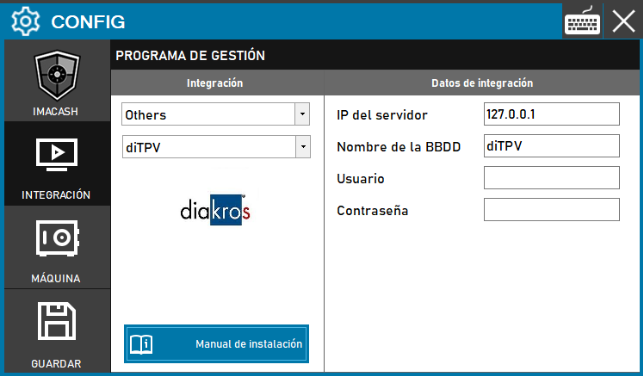
Steps to follow:
- Access the integration settings:
- Go to CONFIG → INTEGRATION in your ImaCash system.
- Select the POS system:
- Select the POS category, in this case "Others".
- Then select diTPV from the drop-down menu.
- Complete the connection information:
- Server IP: Enter the IP address of the server where the Di POS database is stored (example: 127.0.0.1 for local server). Modify only if necessary.
- Name of the BBDD: Enter the name of the database (example: diTPV). Modify only if necessary.
- User: Enter the user to access the database (must be provided by Di TPV).
- Contraseña: Private information provided by the administrator. Enter it only in ImaCash.
- Save the configuration:
- Click the SAVE button (disk icon) at the bottom left.
Note: Remember that the client must request DiTPV (Diakros) to create a username and password; If this is not possible, a user "sa2" will be created.