
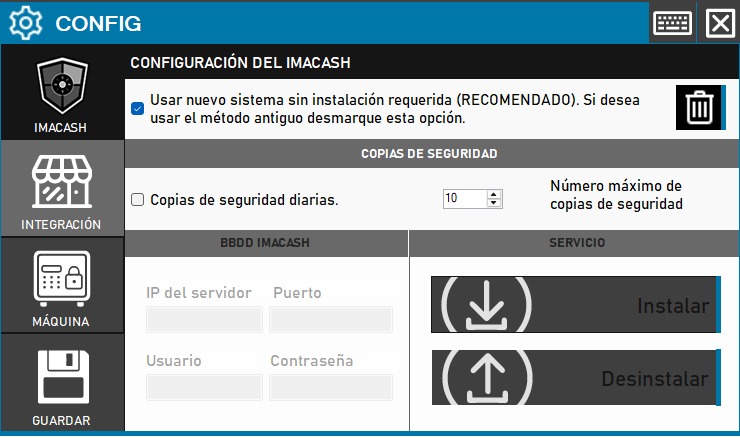
To integrate Revo with ImaCash, fill in the fields as shown in the image and check the option “ Delete transactions at cancel them » if you do not want to keep the sales once canceled.
Important note: ImaCash must be run as administrator, otherwise it will not allow the configuration to be saved. Additionally, it is recommended to have the new database system option activated.
To see the list of cash control machines integrated into ImaCash and compatible with Revo, check our website here.
If you have questions during setup, contact our support team.
Configuration in Revo
CREATION OF THE CASH MACHINE WITH IMACASH
To create your cash machine with ImaCash on REVO, follow these steps:
1. Enter the Revo XEF back-office.
2. Go to Settings / CASH MACHINES.
3. Click + New and complete the information:
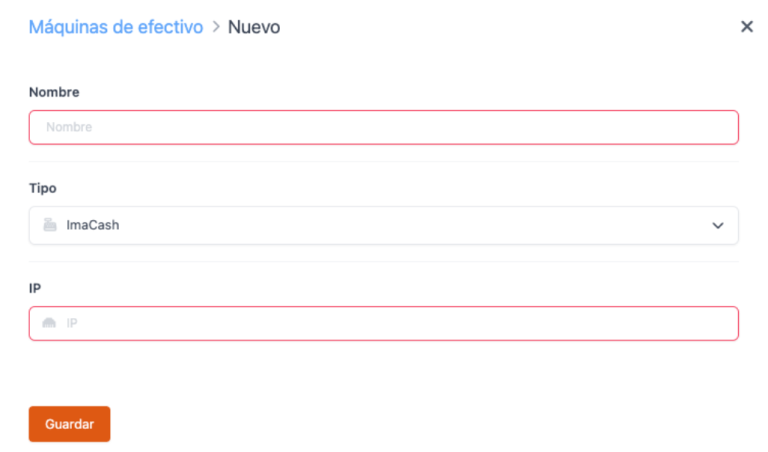
- Name: Enter a name for the cash machine.
- Type: Choose ImaCash.
- IP: Enter the IP address of the server where you have ImaCash.
4. Click Save.
ASSIGNMENT OF THE IMACASH MACHINE TO THE CASHIER
After creating the ImaCash cash machine, assign it to a cashier:
1. Go to Settings / CAJEROS.
2. Edit an ATM or create a new one.
3. In Cash Machine, select the created cash machine.
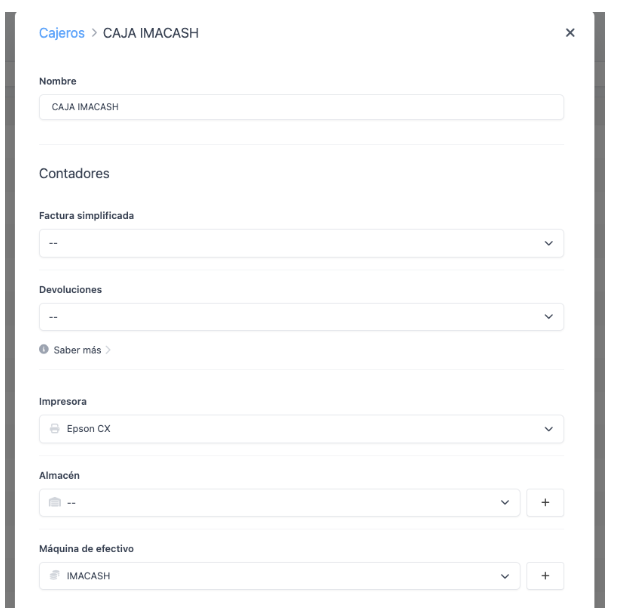
You can create the cash machine directly by clicking the button.
4. Click Save.
HOW TO USE THE IMACASH CASH MACHINE IN THE REVO XEF APP?
Collect an order
To collect an order with the ImaCash cash machine you just have to press the collect cash icon. From this moment, Revo XEF will connect with the cash machine to manage the payment and when the transaction has been completed, Revo XEF will close the order.
Make a return
To return an order paid with the ImaCash cash machine, in the Revo XEF App we click on the r and choose the History option. Once inside, we select the corresponding order and click on quick actions (three dots icon). From the drop-down menu that opens we will choose the option: Make a return. Once we accept Revo XEF it will connect with the cash machine to manage the return.
Make cash receipts.
To make a cash entry, in the Revo XEF App we click on the r and choose the Inputs/Outputs option. We select the Entry option, write a reason and choose the amount of cash we want to enter and confirm. Revo XEF will connect with the cash machine to manage the entry and we will only have to enter the desired amount of cash.
Make cash withdrawals.
To make a cash withdrawal, in the Revo XEF App we click on the r and choose the Inputs/Outputs option. We select the Output option, write a reason and choose the amount of cash we want to withdraw and confirm. Revo XEF will connect with the cash machine to manage the checkout.
5. COLLECTION SCREEN
Once we have pressed the cash button, a screen appears with the following information:
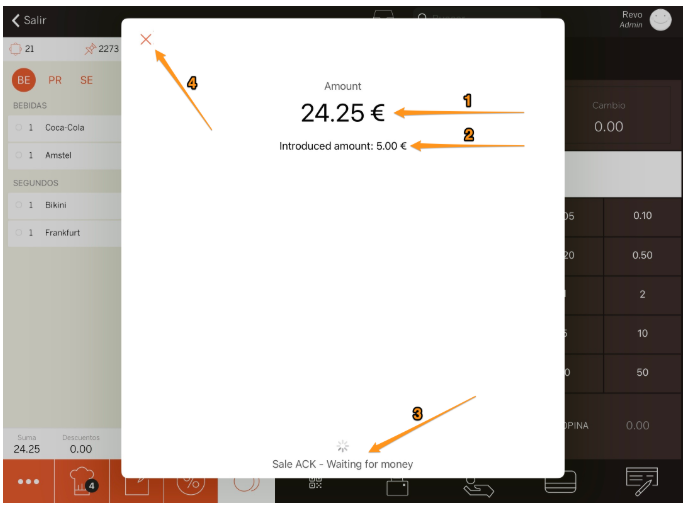
1. Total amount to pay.
2. Amount already entered into the cash machine.
3. Cash machine status.
4. Cancel the current transaction. Upon cancellation, the payment in progress will be canceled and the machine will return the amount of cash already entered.
FAQs
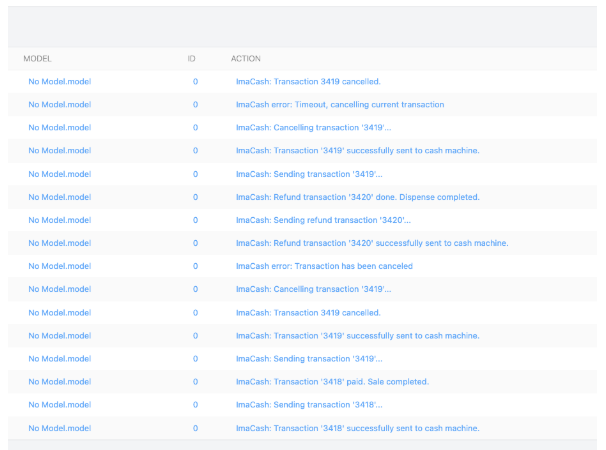
Do we have a record of the movements we make in Revo XEF with a ImaCash type cash machine?
Yes, we have Action Logs for each action we do during the integration. We can review these movements using the “Activity Log” list in the Revo XEF back-office.
Is there a way to check the coins inserted in any ImaCash type cash machine?
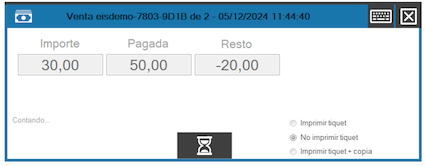
For now, it is only possible to consult it with the ImaCash window active.
In the general configuration of ImaCash, we must have the following check activated:
- Automatic payment window
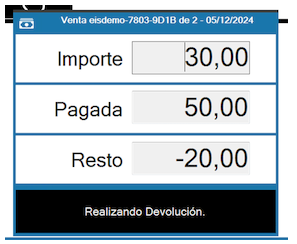
On the other hand, we can also have the following option activated:
- Secondary payment window
What happens if an amount greater than the amount to be paid is entered? Does the machine return change?
Yes, the machine returns change as long as you have enough coins and bills. If you enter an amount greater than the amount to be paid, the machine will return the difference.
What happens if we make a return and the machine does not have money?
Since it is a subscription and you do not have enough change, the transaction will remain pending in ImaCash. In the Revo Therefore, until we click on the "x" in the Revo XEF window to cancel the operation, the transaction will not be deleted from the ImaCash queue. From here, we must fill the exchange machine and then proceed to make the return.
We must note that ImaCash is not a cash drawer, it is mainly an integration software. It allows you to perform an endless number of actions that the default drawers do not allow.
What happens if the machine doesn't have enough cash to return the change?
In all cases, ImaCash will inform through its screen that the inventory is insufficient, we must click on as we are aware that there is no change and automatically, ImaCash will process the transaction and in REVO the sale will be finalized.
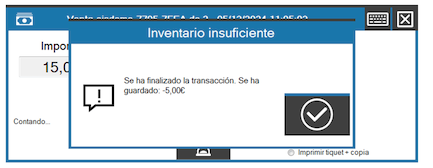
NOTE: For specific cases where ImaCash may detect an error when trying to manage a sale or return, it is very important that we have the ImaCash screen in view to be able to see what is happening at all times.
Can we perform machine balance query operations, loading, emptying, status reports, etc. with the Prosegur cash machine?
From Revo XEF you can only carry out collection, refund, entry and exit operations. The rest of the operations can be done through ImaCash. Please note that operations carried out through ImaCash will not be recognized or recorded by Revo XEF.
How can I make transactions through the Prosegur cash machine screen?
To know how to use and perform any type of action in ImaCash, you can consult this manual.
NOTE: It is advisable to always maintain a level of coins and bills to be able to give change and avoid inconveniences.
NOTE: Operations carried out through ImaCash will not be registered by Revo XEF.
NOTE: You must manage all operations (sales, returns, entries and exits) only from the Revo XEF app, leaving ImaCash in the background and using it only for specific actions with the cash machine, such as refilling, emptying, etc.