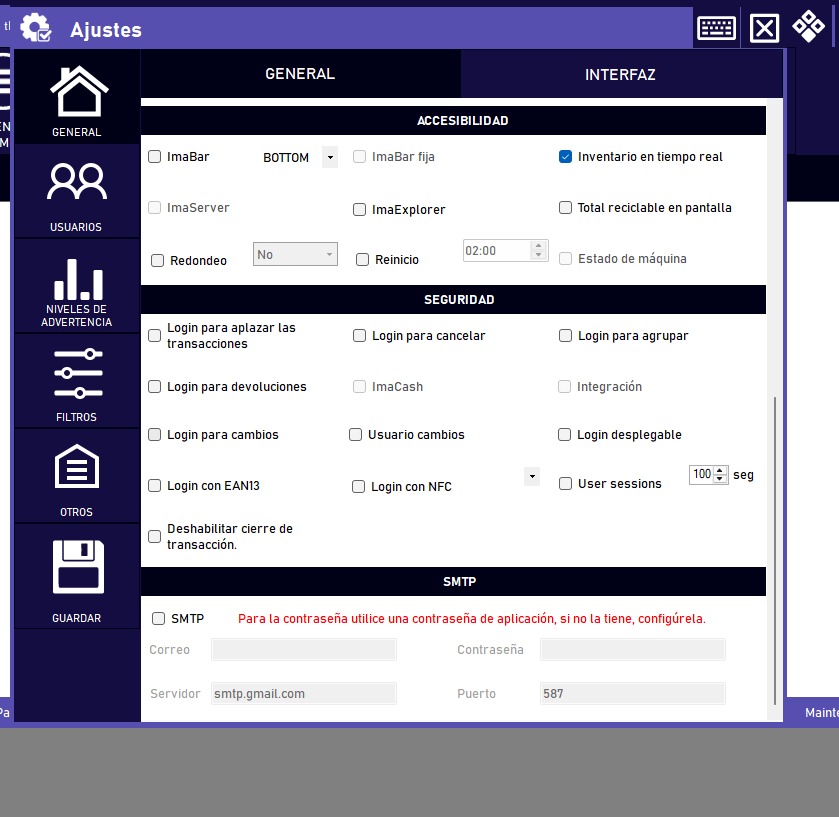
For ImaCash to send important notifications and communications securely and efficiently, you must correctly configure an email account.
This guide shows the essential steps, including two-factor authentication (2FA) setup for stronger security.
Step 1: Prepare your email account with two-factor authentication (2FA)
Before integrating your email with ImaCash, make sure your email account has two-factor authentication (2FA) enabled. This adds an extra layer of protection.
Once 2FA is active, most email providers (such as Gmail, Outlook, etc.) will ask you to generate a specific “app password”. This password is different from the one you normally use to access your email and is the one you must use in ImaCash.
Example: How to generate an app password in Gmail
If you use Gmail, follow these steps (other providers will have a similar process in their security section):
- Open your Google Account management page: Go to https://myaccount.google.com.
- Go to “Security”: In the side navigation menu, select “Security”.
- Find “App passwords”: In the “How you sign in to Google” section, you will find the “App passwords” option. Google may ask you to verify your identity again.
- Note: If you do not see this option, first enable “2-Step Verification” in the same “Security” section.
- Generate the password:
- Give the app password a descriptive name (for example, “ImaCash” or “ImaCash Notifications”) so you can identify it later.
- Click the “Generate” button.
- A 16-character password will be displayed (for example:
kcif yukb jejk mdju). Copy it immediately and store it in a safe place, because you will not be able to see it again once you close that window.
- VERY IMPORTANT! When entering this app password in ImaCash settings, you must enter it WITHOUT SPACES. Using the example above, the password to enter would be:
kcifyukbjejkmdju.
Step 2: Configure SMTP settings in ImaCash
With your app password ready, the next step is to enter the outgoing mail server (SMTP) configuration data in the ImaCash panel. This will allow our system to send emails using your account.
SMTP configuration example for a Gmail account:
Although these details are for Gmail, they are similar for other providers (check your provider's documentation for the exact SMTP details if you do not use Gmail).
- SMTP server:
smtp.gmail.com - Port:
- Recommended:
587(uses TLS encryption) - Alternative:
465(uses SSL encryption)
- Recommended:
- Email/User: Your full email address (for example:
[email protected]) - Password: The 16-character app password you generated in the previous step (remember, without any spaces!).