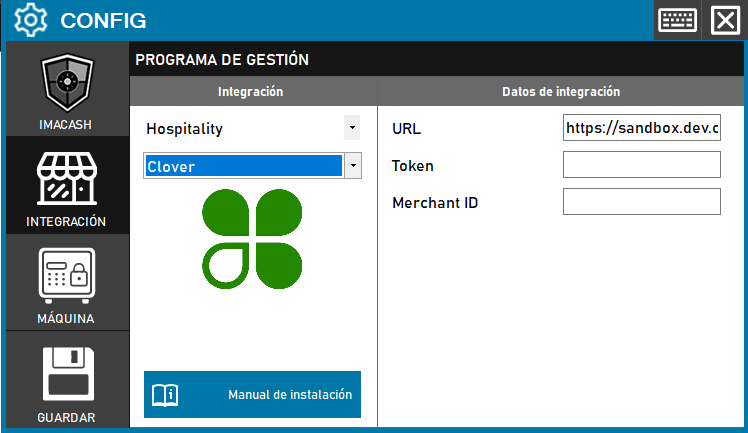
Clover configuration
To integrate Clover with ImaCash, the technician must enter the API URL for the region, the authentication token and the Merchant ID. These details are available in Clover BackOffice, in the “Account & Setup” section.
Steps to follow
- Access the integration settings:
- Go to CONFIG > INTEGRATION in your ImaCash system
- Select the POS system:
- Select the POS category, in this case «Hospitality»
- Then select Clover from the drop-down menu
- Complete the integration data:
- URL: Enter the Clover API URL based on your region:
- US & Canada: https://api.clover.com/
- EU: https://api.eu.clover.com/
- LATAM: https://api.la.clover.com/
- Token: Private information provided by the administrator. Enter it only in ImaCash.
- Merchant ID: Enter the merchant identifier provided by Clover (also available in Account & Setup)
- Save the configuration:
- Click the SAVE button (save icon) at the bottom left
Important note: The URL will depend on the region in which the business is located. The token and Merchant ID can be found in the Clover BackOffice, in the “Account & Setup” section. Make sure you use the correct URL based on the customer's geographic location.