Set up CentralGest through ODBC
This guide covers the CentralGest ODBC connector. Confirm the edition and data structure prepared for ImaCash with the provider; the brand does not validate other editions, CentralGest Cloud or every cash device.
The provider must prepare a driver and an ODBC data source (DSN) compatible with 32-bit ImaCash. The DSN must work without prompts under the Windows user running ImaCash, with permission to query the required data.
Setup steps
- If a working DSN already exists, verify its exact name and use it without recreating it. Otherwise, ask the provider to prepare the driver, destination, private authentication and permissions. These details belong in the ODBC data source; do not publish them or enter a connection string in ImaCash.
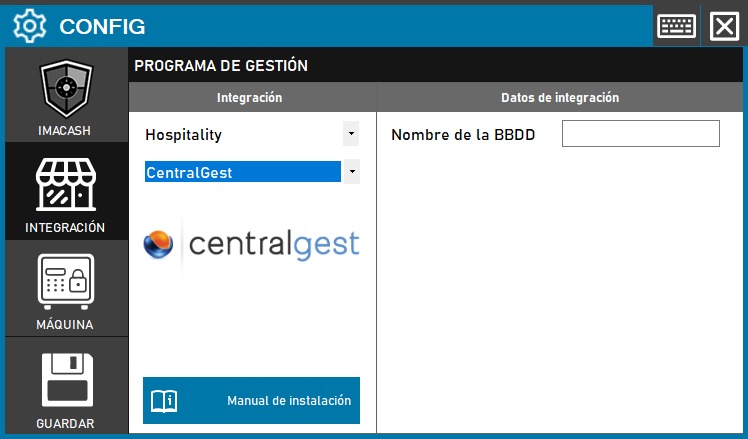
- Open Configuration > Integration > POS and select CentralGest. Configure the cash device connection separately under Machine.
- In Database Name, enter the exact name of the prepared ODBC DSN. This field does not take a file name, folder, server, account or password. This selector has no IP address, port or authentication fields.
- Close the changed configuration and choose to save. Review the result and accept a proposed restart only when appropriate. Saving does not prove successful reading or a complete POS exchange.
- With the provider, check authorized actual reads and each supervised flow: unique reference, date and time, amount, cents, sign, terminal and seller. Compare each refund with its original document and actual cash; a connection does not replace this check.
Scope and checks
Queries transactions associated with the specific payment method in the exchange prepared by the provider. There is no payment method selector: confirm which transactions enter and their signs before use. Do not assume all sales, cards or mixed payments must be imported.
Can query terminal and seller names. Separately validate the result of each capture and pending transaction filter using actual installation values. Queries use the received update date and time; changing the synchronization date does not guarantee complete history or freedom from duplicates.
Does not write confirmation or cancellation to CentralGest. A local confirmation or cancellation does not prove a changed POS state or returned cash. If the result is uncertain, check both programs and actual cash before repeating, resynchronizing or restarting.
Does not import products or shifts or provide a bank card total or shop catalog. Saving, this documentation and the logo do not validate physical operation or universal compatibility.
The historical screenshot shows an empty Database Name field, the Hospitality category, an older logo and the Save button. The current selection is POS > CentralGest, with saving on closing; the current logo appears in this page’s header.