


SambaPOS Configuration
To integrate the SambaPOS Software with ImaCash, the technician must select the corresponding version installed on the client, since each one uses a different communication channel (Files, Database or API) to record sales.
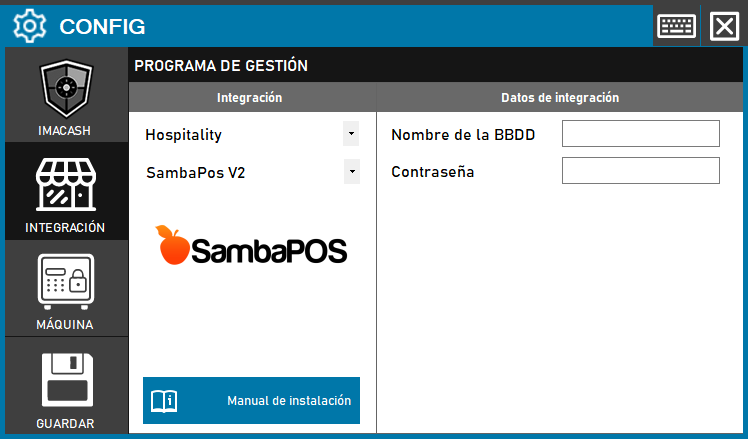
Steps to follow:
CONFIG → INTEGRATION in ImaCash.
Management Program:
Category: Hospitality.
Integration: SambaPOS V2.
Integration data:
Sales: Click the folder icon and select the path where the sales files are saved.
Save: Click the SAVE button.
SambaPOS V3 (SQL Server)
Version V3 requires a direct connection to the SQL database where real-time transactions are stored.
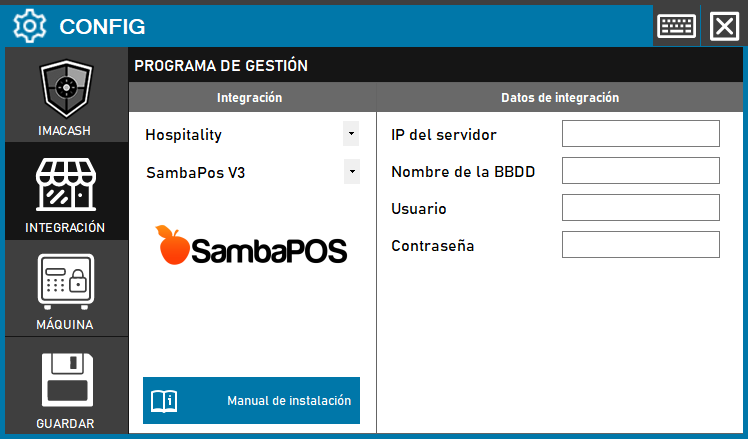
Steps to follow:
CONFIG → INTEGRATION in ImaCash.
Management Program:
Category: Hospitality.
Integration: SambaPOS V3.
Integration data:
Server IP: Enter the IP address of the server SQL.
Database Name: Enter the name of the SambaPOS database.
User / Password: Enter the database access credentials (e.g. sa user).
Save: Click the SAVE button.
SambaPOS V5 (API/GraphQL)
The most recent version uses a programming interface (API) for a more robust and secure integration.
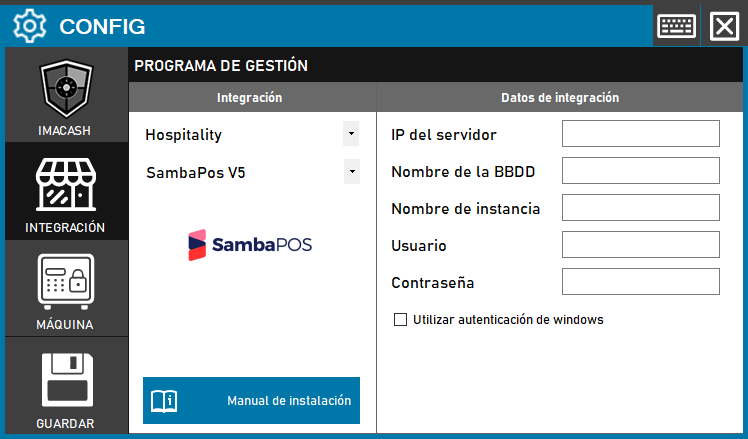
Steps to follow:
CONFIG → INTEGRATION in ImaCash.
Management Program:
Category: Hospitality.
Integration: SambaPOS V5.
Integration data:
Server URL: Enter the address of the API server (e.g. http://localhost:8080).
API Key / Token: Enter the authentication code configured in the terminal.
Save: Click the SAVE button.