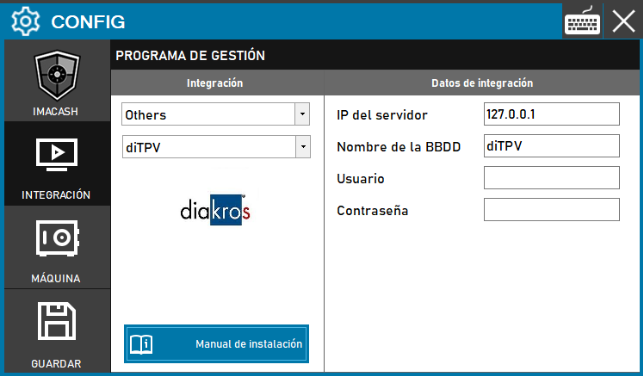
Steps to follow:
- Access the integration configuration:
- Go to CONFIG → INTEGRATION in your ImaCash system.
- Select the POS system:
- Select the POS category, in this case "Others".
- Then select diTPV from the drop-down menu.
- Complete the connection details:
- IP del servidor: Introduce la dirección IP del servidor donde se almacena la base de datos de Di TPV (ejemplo: 127.0.0.1para servidor local).Modificar solo si es necesario.
- Nombre de la BBDD: Introduce el nombre de la base de datos (ejemplo: diTPV).Modificar solo si es necesario.
- User: Enter the user to access the database (must be provided by Di TPV).
- Contraseña: Private information provided by the administrator. Enter it only in ImaCash.
- Save the configuration:
- Click the SAVE button (disk icon) at the bottom left.
Note: Remember that the customer must ask DiTPV (Diakros) to create a username and password; if this is not possible, an “sa2” user will be created.