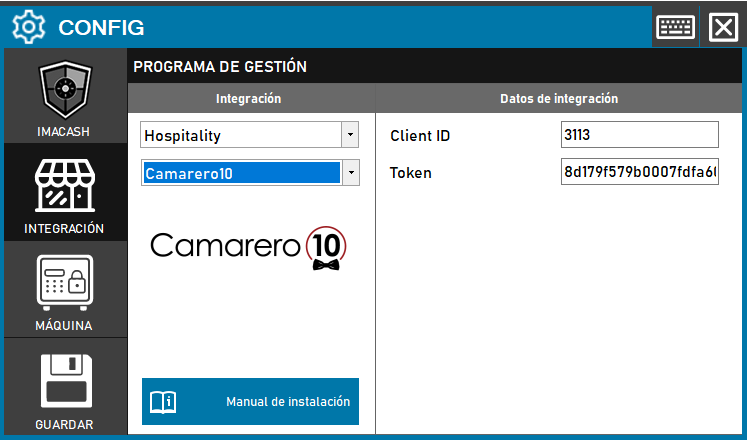
Steps to follow:
1. Open the integration settings:
- Go to CONFIG → INTEGRATION in your ImaCash system
2. Select the POS system:
- Select the POS category, in this case «Hospitality»
- Then select Camarero10 from the dropdown menu
3. Complete the integration details:
- Client ID: Enter the client identifier provided by Camarero 10 (example: 3113)
- Token: Private information provided by the administrator. Enter it only in ImaCash.
4. Save the configuration:
- Click the SAVE button (save icon) at the bottom left
Note: Camarero 10 technicians must specify the “Customer ID” and “Token” which are unique credentials provided by the system to establish the connection.