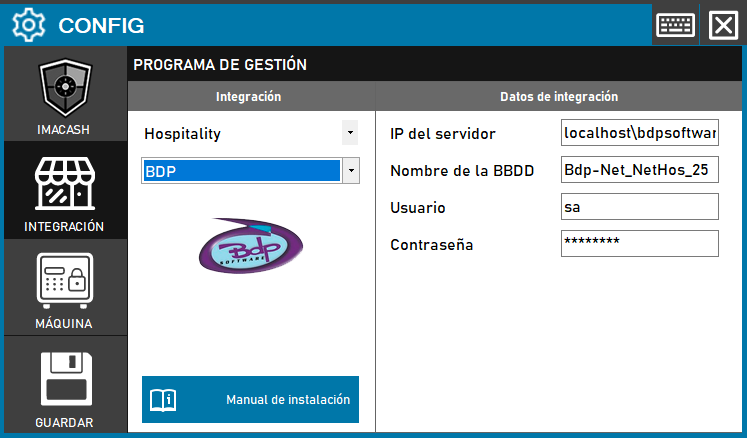
BDP configuration
- Access the integration settings: Go to CONFIG → INTEGRATION in your system ImaCash
- Select the POS system: Select the POS category, in this case “Hospitality” - Next, select BDP from the drop-down menu
- Complete the connection information:
- Server IP: Enter the IP address of the server where BDP is installed (example: localhost\bdpsoftware)
- DB Name: Name of the database (example: Bdp-Net_NetHos_25)
- User: User with access permissions to the database (example: sa)
- Contraseña: Private information provided by the administrator. Enter it only in ImaCash.
- Save the configuration: Click the GUARDAR button (floppy disk icon)
Important: Choosing the correct variant will depend on the BDP version installed and the type of integration required by the customer. Check with the person responsible for the BDP system which variant is appropriate before proceeding with the configuration.
Capture filters
In Settings > Filters, enable only the terminal, cashier and store criteria needed for this installation. Select the values from the BDP catalogues and save the configuration.