

Set up imCashbox in ImaCash
Before setup
- The supplier must prepare the imCashbox device and a communication interface compatible with ImaCash. Confirm the model, version and available operations before setting up the workstation.
- The ImaCash PC needs TCP access to the device on port 8500 within the authorised private network. The administrator must provide the private IPv4 address and prepare access. This selection has no editable port field; do not expose the service to the Internet.
- Set up the workstation with an authorised user and no operations in progress. This selection does not use user, password or exchange folder fields in ImaCash. The administrator manages the device’s own access details privately.
imCashbox, CashBox and BillCoin are separate selections: do not share parameters because their names look similar. The page, photograph and a successful connection do not establish physical validation. Confirm capacities, denominations, permissions and operations for the exact model and installation.
Steps in ImaCash
- On the main screen, open Configuration. If prompted, sign in as a user with permission to configure ImaCash. Open Machine and select ImCashbox.
- In IP, enter only the private IPv4 device address supplied by the administrator, without a protocol, port, path or hostname. Do not use example values as your device configuration.
- Check that the currency is EUR. This selection keeps it fixed; do not assume other currencies or denominations from the manufacturer’s general specifications.
- Close with X and choose Save if Unsaved changes appears. When you change the profile or IP, ImaCash tries to open a TCP connection to the device. It may skip the check if the settings match the saved configuration.
- Before commercial use, validate communication, inventory and the required payments, change or refunds under supervision with the actual user. If a check fails, confirm the device, interface and network with the supplier before continuing.
If saving fails, ask the administrator to check the IPv4 address, access from the workstation and the device service on TCP port 8500. After saving, reopen the profile and check the IP. A successful connection establishes network access. Inventory and cash operations require separate checks.
Choose Continue editing to return to the form, or Exit without saving to discard pending changes. Closing leaves any stage already saved in place.
ImaCash demonstration. The video shows the Spanish interface with captions and highlights the buttons. The IP field is blank. The demonstration saves nothing and makes no connection.


ImCashbox configuration video and steps
- On the main screen, open Configuration as an authorised user.
- In Machine, select ImCashbox.
- In IP, enter the private IPv4 address supplied by your administrator.
- The currency is fixed to EUR.
- Close with X to see the options if any changes are pending.
- Save, continue editing or discard pending changes.
Visit the official imCashbox website
imCashbox reference
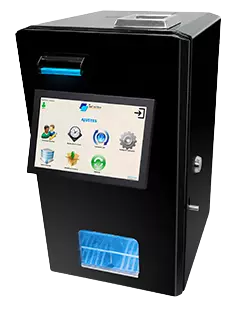
imCashbox
imCashbox is a cash handling solution for the point of sale. To connect it to ImaCash over the network, confirm the device model, version and operations available at your installation with the supplier.