


GVisual Configuration
To integrate Software GVisual with ImaCash, the technician must specify the server IP, the database access data (generally default) and the local path of the sales file gvisualdat.fdb.
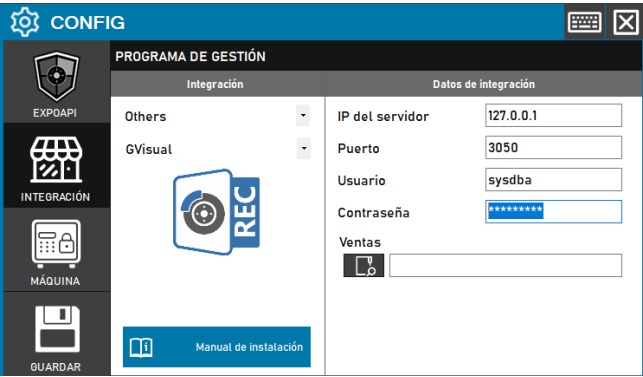
Steps to follow:
CONFIG → INTEGRATION in ImaCash.
Management Program:
Category: Others
Integration: GVisual
Integration data:
Server IP: Enter the IP address of the server where the FireBird DB is located (e.g. 127.0.0.1).
Port: Enter the connection port (e.g. 3050).
User: Enter the user (e.g. sysdba).
Password: Enter the password.
Sales: Locate and select the full local path of the sales file named gvisualdat.fdb.
Save: Click the SAVE button (floppy disk icon).
Attention: If the server is different from localhost, the path of the sales file should not be the path shared by the network, but according to the server. That is to say:
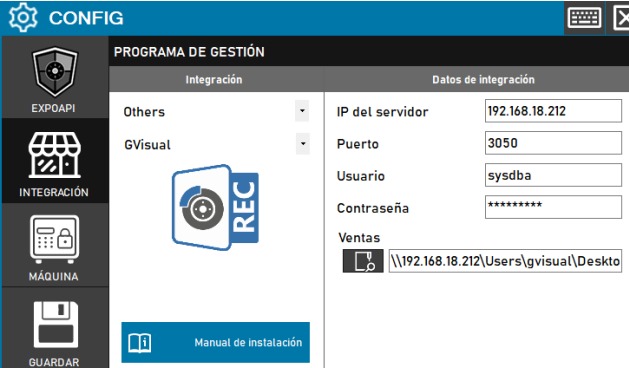
This configuration will fail
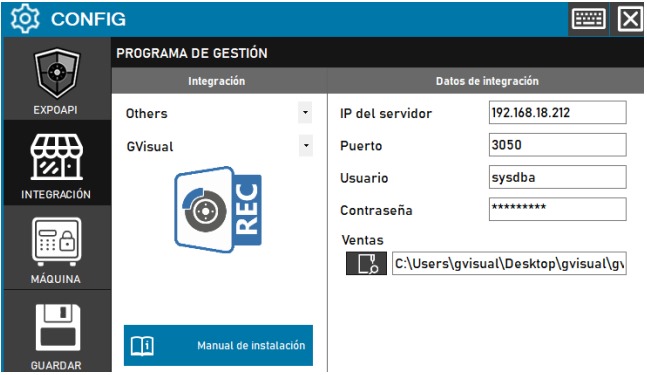
This one will work instead.