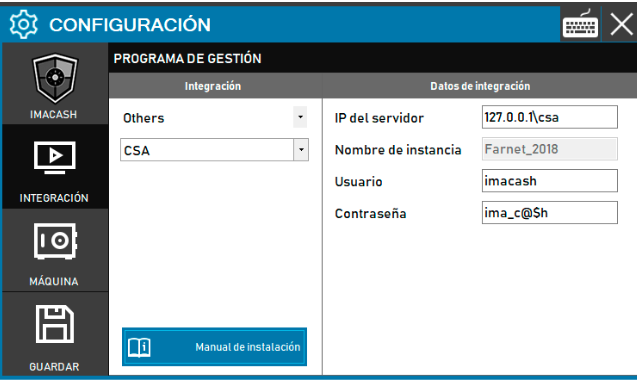
CSA configuration
To integrate CSA with ImaCash, the technician must enter the server IP address together with the CSA server identifier. The remaining connection details are usually default values, except for the password, which must be provided by the CSA software provider.
Steps to follow
- Access the integration configuration:
- Go to CONFIGURATION → INTEGRATION in your ImaCash system.
- Select the POS system:
- Select the POS category, in this case "Others".
- Then select CSA from the drop-down menu.
- Complete the connection details:
- Server IP: Enter the IP address of the server where the database is located, followed by the \fcsa identifier (example: 127.0.0.1\fcsa for local server).
- Instance name: This data is default (example: Farnet_2018).
- User: Enter the database access user (example: imacash).
- Contraseña: Private information provided by the administrator. Enter it only in ImaCash.
- Save the configuration:
- Click the SAVE button (disk icon) at the bottom left.