Steps to follow:
1. Open the integration settings:
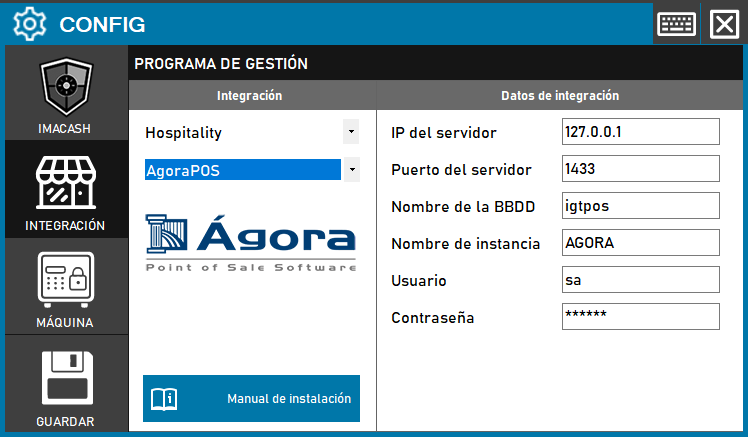
- Go to CONFIG → INTEGRATION in your ImaCash system
2. Select the POS system:
- Select the POS category, in this case «Hospitality»
- Next, select AgoraPOS from the dropdown menu
3. Complete the connection details:
- Server IP: Enter the IP address of the server where Agora POS is installed (example: 127.0.0.1 for local server)
- Port: Indicates the connection port (example: 1433)
- Database name: Name of the database (example: iqtpos)
- Instance Name: Name of the SQL Server instance (example: AGORA)
- User: User with access permissions to the database (example: sa)
- Contraseña: Private information provided by the administrator. Enter it only in ImaCash.
4. Save the configuration:
- Click the SAVE button (save icon) at the bottom left
Note: Other data is usually the system default. Verify the server IP with the Agora Retail system manager before configuring.
How to enable remote connections in SQL Server
To allow remote connections, follow these steps:
- Open the SQL Server Configuration Manager
- Find and open this program on your computer.
- Find the “SQL Server Browser” service
- Go to the SQL Server Services section.
- Locate the instance named SQL Server Browser.
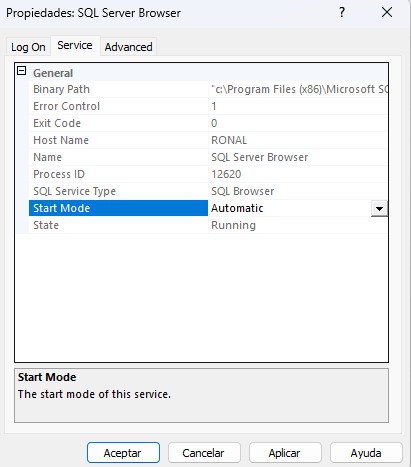
- Set the automatic start mode
- Right click on SQL Server Browser and select Properties.
- On the Service tab, change the Start Mode to Automatic.
- Click Apply to save your changes.
- Starts the service
- Right click again on SQL Server Browser.
- Select Start to put the service in Running state.