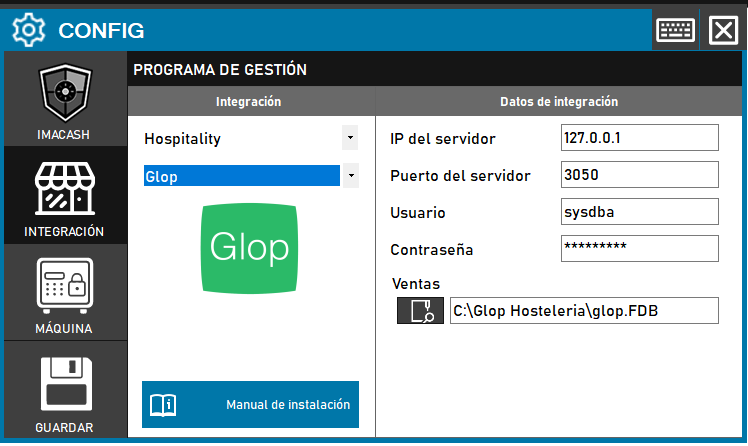
To integrate Software Glop with ImaCash, the technician must configure the server IP, port and locate the FireBird database file. Additionally, you will need to manage the selection of payment types and apply a service-level solution if the wirecrypterror error occurs.
Steps to follow:
- CONFIG → INTEGRATION in ImaCash.
- Management Program:
- Category: Hospitality
- Integration: Glop
- Integration data:
- Server IP: Enter the IP address of the server.
- Server port: Enter the port (e.g. 3050).
- User: Enter the user (usually default, e.g. sysdba).
- Contraseña: Private information provided by the administrator. Enter it only in ImaCash.
- Sales: Locate and select the “FireBird Database” file (e.g. glop.FDB).
- Save: Click the SAVE button (floppy disk icon).
Note: After saving, you will be asked to select the cash payment type and then the card payment type. The payment types must be carefully selected for the integration to function correctly.
wirecrypterror fix (if it occurs when saving):
- Go to the Firebird folder (usually in C:\).
- Locate and open the firebird.conf file.
- Find the code #wirecrypt = enabled (client) / required (server).
- Change it to wirecrypt = enabled.
- Save the file and, in services.msc, find the “Firebird” service and restart it.