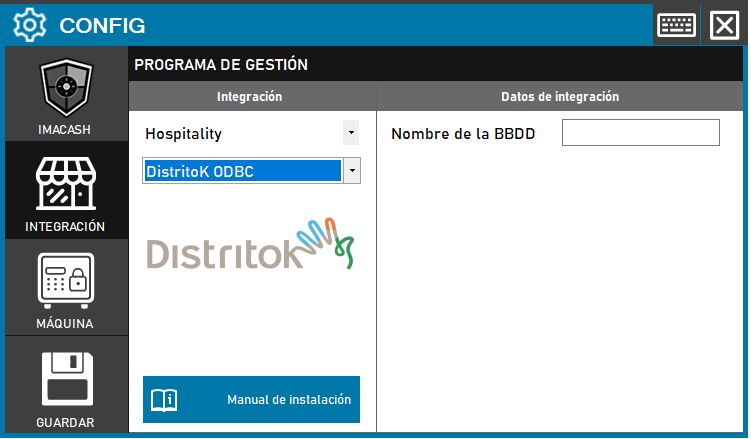
DistrictK ODBC Configuration
Only the ODBC name needs to be entered. When creating the ODBC (*.fdb), the component may not exist in Windows and the “ODBC Firebird” driver may need to be installed.
Steps to follow:
1. Open the integration settings:
- Go to CONFIG → INTEGRATION in your ImaCash system
2. Select the POS system:
- Select the «Hospitality» category
- Then select DistritoK ODBC from the drop-down menu
3. Complete the configuration data:
- Database Name: Enter the name of the ODBC configured for District K
4. Save the configuration:
- Click the SAVE button
ODBC Firebird example
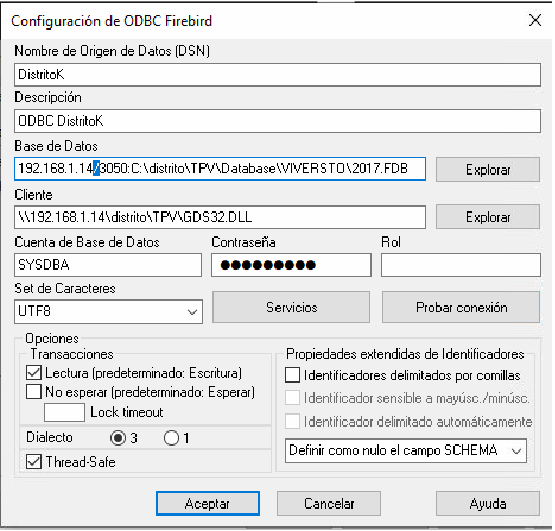
ODBC Firebird configuration:
- Data Source Name (DSN): DistrictK
- Description: ODBC DistrictK
- Database: Full path to the.FDB file (example:192.168.1.14/3050:C:\distritoK\TPV\Database\VIVERSTO\2017.FDB)
- Client: Path to the Firebird client library (example:\\192.168.1.14\districtK\TPV\GDS32.DLL)
- Database Account: SYSDBA
- Contraseña: Private information provided by the administrator. Enter it only in ImaCash.
- Character Set: UTF8
- Options:
- ☑ Reading (default: Writing)
- ThreadSafe: ☑ Enabled
- Dialect: 3
Make sure to test the connection before finishing the ODBC configuration.
Important note: It is possible that when you try to create the ODBC for .fdb files, the component does not exist in Windows. In that case, you will need to install the “ODBC Firebird” to be able to configure it correctly.